
Plugin Installation
- Download the SignDash Integration plugin. Navigate to the WordPress admin area and visit Plugins » Add New.
- Click on the “Upload Plugin” button at the top of the page.
- Click on “Choose File” when the upload form appears. Select the SignDash Integration plugin’s zip file from your computer and click on “Install Now”.
- Once the installation finishes, click on “Activate Plugin”.
Settings
To access settings, navigate to the WordPress admin area and visit SignDash in the left menu.
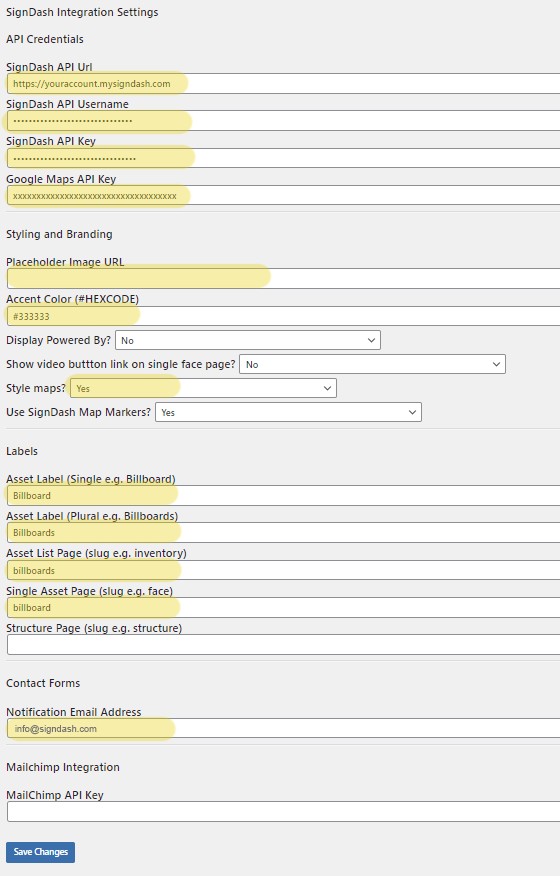
Important Settings
1. API Credentials – Obtain your API credentials from SignDash and enter them into the appropriate fields.
2. Google Maps API Key – Obtain your Google Maps API key from your Google Maps API console and enter it into the appropriate field. Make sure you have “Maps JavaScript API” and “Static Maps API” enabled in your console.
3. Placeholder Image URL – The Placeholder Image URL should contain a complete url to an image you would like to use on faces that do not have an image set in your SignDash account.
4. Asset List Page – You must set this too the page slug that contains a full list or map of your faces.
5. Single Asset Page – You must set this to the page slug that contains your single face shortcodes.
6. Notification Email Address – Enter a single email address that will receive information submitted on contact forms generated on single face pages.
Initial Setup
You must manually create a couple of pages in WordPress that are used to display SignDash inventory.
Create the following pages:
- Billboards (plural) (Inventory / Asset List Page)
- This page should contain a map shortcode and / or a face list shortcode. We recommend using a map shortcode at the top of the page and the grid layout shortcode below the map.
- The slug for this page should match the asset list slug entered into the SignDash settings page. You can use another page name / slug such as “Inventory”, but make sure that you enter the appropriate slug in the settings page.
- Billboard (singular) (Billboard Details / Single Asset Page)
- This page should contain the [single_face] shortcode or you can use your theme’s layout builder and use individual face detail shortcodes to build a custom billboard details page.
- The slug for this page should match the single asset slug entered into the SignDash settings page. You can use another page name / slug such as “Board”, but make sure that you enter the appropriate slug in the settings page.
- This page will be used to dynamically display the details for all billboards in your inventory. When clicking on a billboard in the map or list of faces, the user will be taken to this page. The url clicked on by the user will contain the unique id of the billboard (e.g. example.com/billboard/101). The SignDash plugin will query SignDash servers for the unique id passed in the url, pull the data for the billboard and display it on this page.
Shortcodes
Map Shortcodes
[faces_map] – Displays a Google Map of structures and faces
Optional Attributes
- types – comma separated list of integers corresponding to face types (1=Digital,2=Static,3=Trivision)
- structure_types – comma separated list of integers corresponding to structure types (101=Outdoor Billboards)
- city – Comma separated list of city names
- state – Comma separated list of state abbreviations
- region – Comma separated list of integers corresponding to region ID in SignDash account
- features – If this is to any value, only featured faces will be displayed
- limit – Integer that will limit the number of faces shown
- state_outlines – Set to “1” if you would like to outline US states on the map
- zoom – Set to a valid Google Maps zoom level. Default is 14.
- map_center – Set to “lat_value,long_value” (e.g. map_center=”33.74479, -84.38957”)
- styled – Set to “0” (false) or “1” (true) if you would like to override the default setting set in the SignDash Settings page
[faces_map_clustered] – Displays a Google Map of structures and faces utilizing clustered markers
Optional Attributes
- types – comma separated list of integers corresponding to face types (1=Digital,2=Static,3=Trivision)
- structure_types – comma separated list of integers corresponding to structure types (101=Outdoor Billboards)
- city – Comma separated list of city names
- state – Comma separated list of state abbreviations
- region – Comma separated list of integers corresponding to region ID in SignDash account
- features – If this is to any value, only featured faces will be displayed
- limit – Integer that will limit the number of faces shown
- state_outlines – Set to “1” if you would like to outline US states on the map
- zoom – Set to a valid Google Maps zoom level. Default is 14.
- map_center – Set to “lat_value,long_value” (e.g. map_center=”33.74479, -84.38957”)
- styled – Set to “0” (false) or “1” (true) if you would like to override the default setting set in the SignDash Settings page
List of Faces
[faces_grid] – Displays a grid layout (rows and columns) of face cards
Optional Attributes
- types – comma separated list of integers corresponding to face types (1=Digital,2=Static,3=Trivision)
- structure_types – comma separated list of integers corresponding to structure types (101=Outdoor Billboards)
- city – Comma separated list of city names
- state – Comma separated list of state abbreviations
- region – Comma separated list of integers corresponding to region ID in SignDash account
- features – If this is to any value, only featured faces will be displayed
- limit – Integer that will limit the number of faces shown
- load_more – Set to integer greater than 0 to cause manually lazy loading of grid elements. The set value will determine how many faces are loaded with each click of the “Load More” button
- digital_tag – set to “1” to display a tag if the face is a digital
- avail_tag = set to “1” to display a tag if the face is available
[faces_list] – Displays a vertical list of faces
Optional Attributes
- types – comma separated list of integers corresponding to face types (1=Digital,2=Static,3=Trivision)
- structure_types – comma separated list of integers corresponding to structure types (101=Outdoor Billboards)
- city – Comma separated list of city names
- state – Comma separated list of state abbreviations
- region – Comma separated list of integers corresponding to region ID in SignDash account
- features – If this is to any value, only featured faces will be displayed
- limit – Integer that will limit the number of faces shown
Display Face Details
When you click on a face in a map, the face grid, or face list, users will be redirected to a single page that will dynamically display the face details of the appropriate face. Use the shortcodes below to create the layout for the face detail page.
[single_face] – Displays all data related to a single face. This should not be used with other face shortcodes
The following face detail shortcodes can be used inside of page builders to create a custom layout for your single face page.
[sd_face_title] – Displays the face’s description / title
[sd_face_image] – Displays the face’s primary image
Optional Attributes
- hide_placeholder – Set to “1” to hide if an image has not been set in SignDash. The default behavior is to display the placeholder image if the face does not have an image.
[sd_face_photosheet_button] – Displays a button that links to the face’s PDF photosheet
[sd_face_details] – Displays all of face’s details (address, coordinates, traffic counts, etc)
[sd_face_static_map] – Displays a static google map of face’s location
[sd_face_video] – Displays a face’s embedded video if set in SignDash
[sd_face_contact_form] – Displays a contact form that acts as an inquiry form for the specific face
Additional Features / Notes
- Yoast SEO Integration – If Yoast SEO Plugin is installed, the SignDash Integration plugin will utilize Yoast SEO’s ability to dynamically create page titles for individual face pages. All faces are rendered on the same WordPress page where you have entered the face detail shortcodes. Through Yoast SEO’s hooks, SignDash will use the face code and description to set the page title.
- Face detail / Asset detail pages will dynamically generate content base on the url parameters.
- Single face page URLs are structured like: https://domain.com/{single_face_slug}/{face_id}
- The face_id part of the URL is passed to the face detail shortcode(s)