Preparing Your QuickBooks Online Account
- Create a “Production Fee” product in QuickBooks Online if it does not already exist. This product will be associated with production fees in SignDash during a later step.
- Create an “Install Fee” product in QuickBooks Online if it does not already exist. This product will be associated with installation fees in SignDash during a later step.
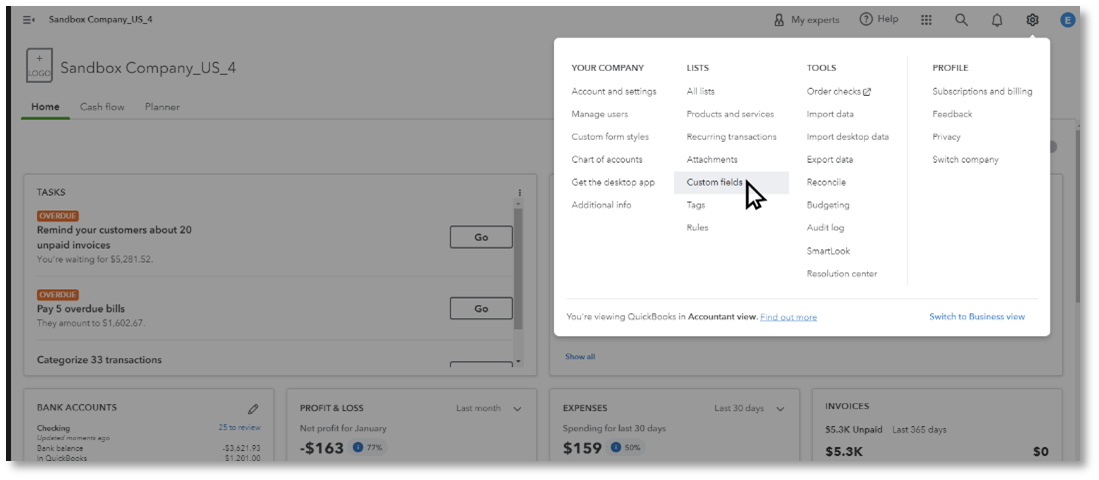
- Create a custom field that will be used to store SignDash contract numbers (e.g. “Contract ID”).
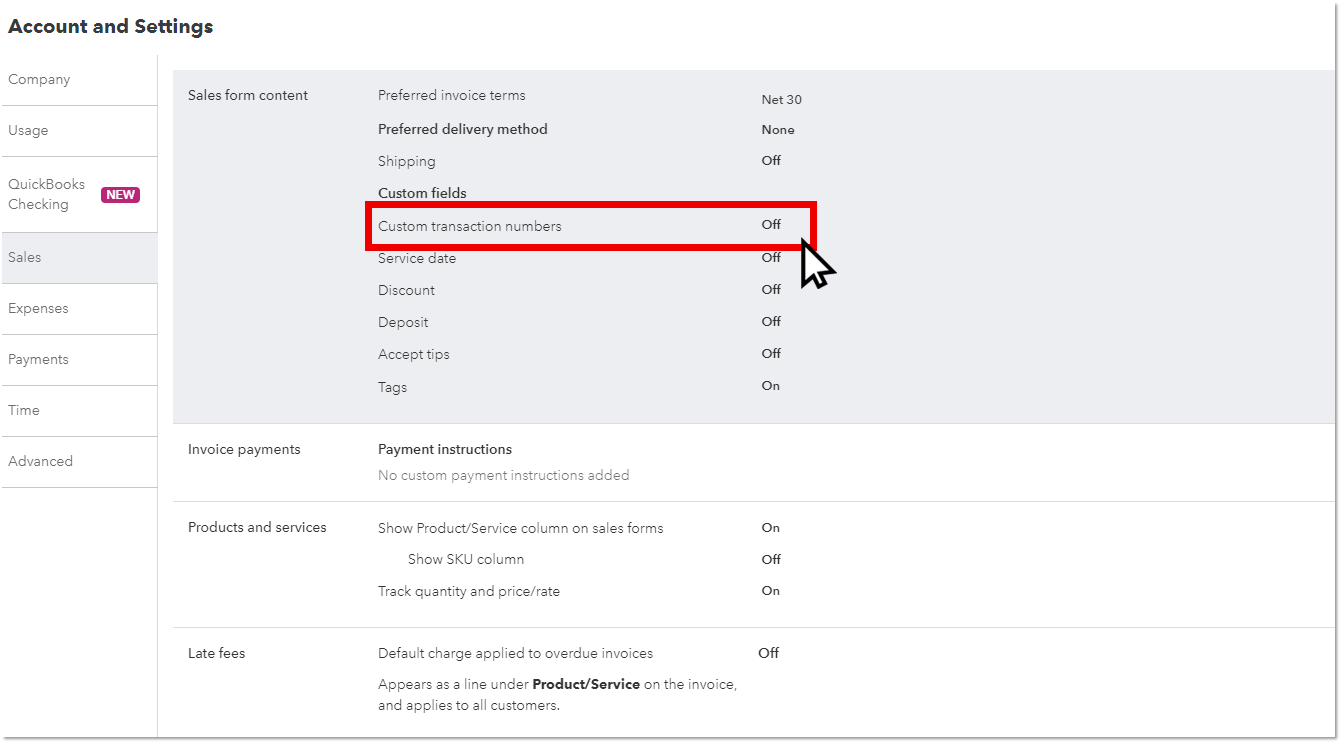
4. Verify that Custom Transaction numbers are “Off” in your Account Settings. Navigate to “Settings” -> “Account Settings” -> “Sales”. Once you have confirmed that “Custom transaction numbers” are “Off”, it is a good idea to log out of your QBO account and log back in to confirm that the setting is still off.
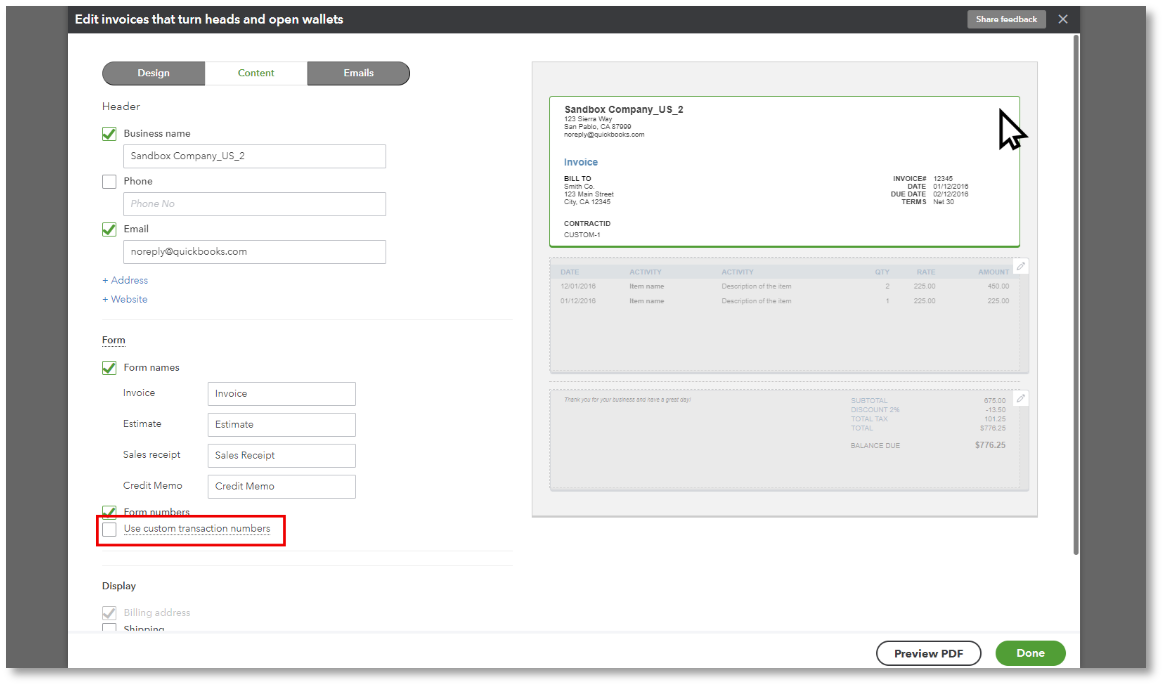
5. Verify that Custom Transaction numbers are “Off” in your Sales Forms templates. Navigate to “Settings” -> “Custom form styles”. Edit each form template and click on the “Content” tab, and then click the pencil icon for the heading section of the form. Ensure that “Use custom transaction numbers” is unchecked and click “Done”.
Connecting SignDash to QuickBooks Online
- Log into your SignDash account
- In the lefthand menu, navigate to “QuickBooks” -> “QuickBooks Connection”
- Click on the green button labeled “Connect to QuickBooks”, log into your QuickBooks account, and follow any required prompts.
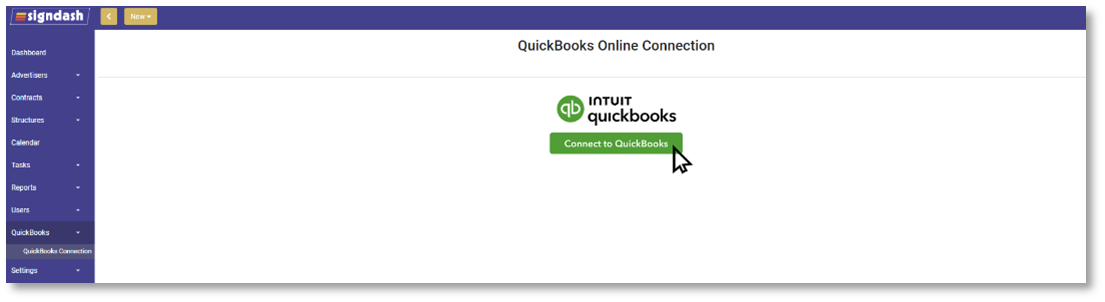
4. After successfully connecting to QuickBooks, you will be returned to the QuickBooks Connection screen and will see confirmation that the connection was successful.
Required Product and Custom Field Linking
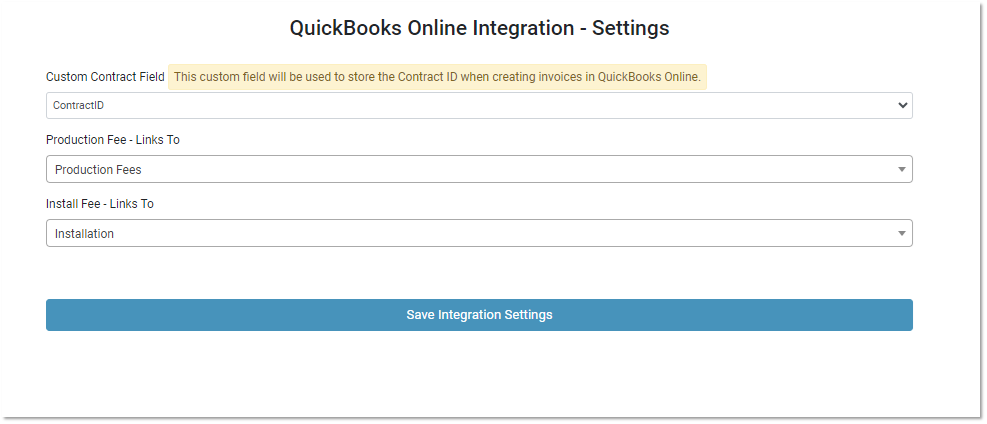
- In the lefthand menu, navigate to “QuickBooks” -> “Settings”.
- Select the custom field you previously created that will be associated with Contract ID’s.
- Select the “Production Fee” product you previously created that will be associated with contract production fees.
- Select the “Install Fee” product you previously created that will be associated with contract install fees.
Linking Faces to QuickBooks Online
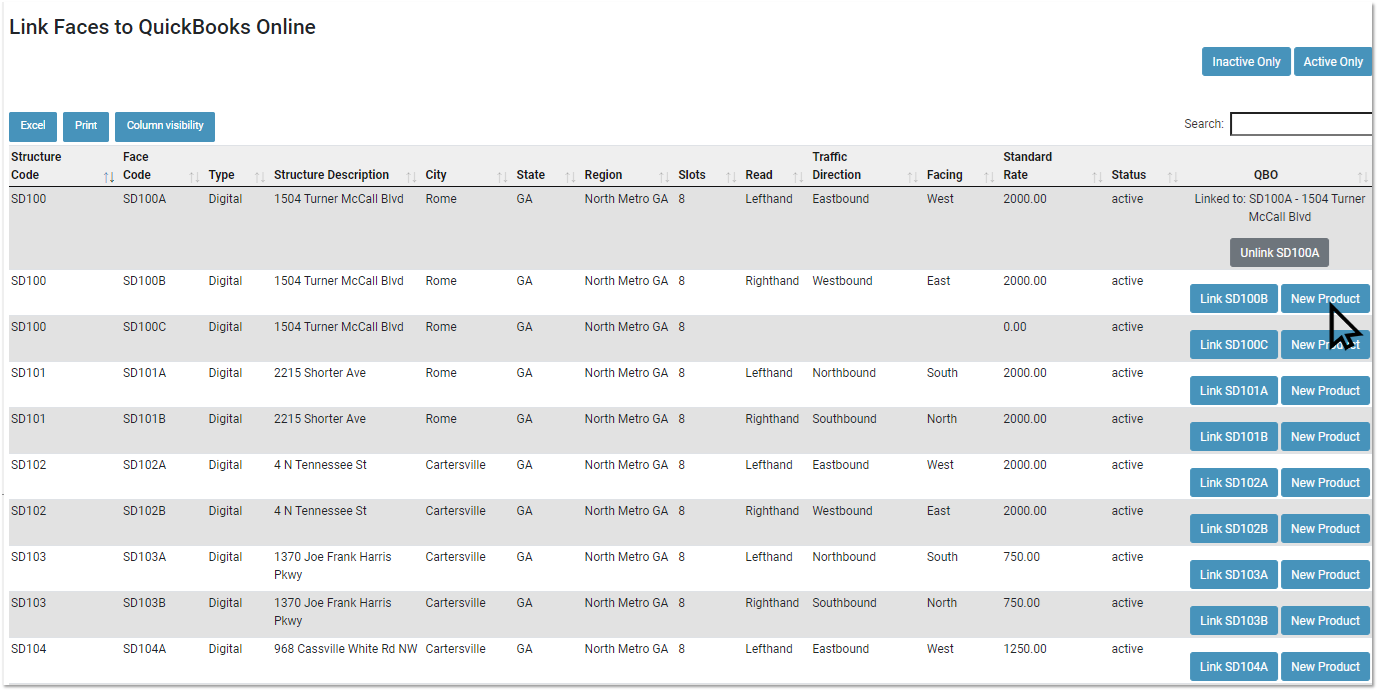
It is important to link all active billboard faces to a product in QuickBooks. You will not be able to generate contract invoices in QuickBooks Online if the billboard faces associated with the contract are not linked to QuickBooks Online products.
- In the lefthand menu, navigate to “QuickBooks” -> “Link Faces”.
- For each face listed, either click “New Product” to create a new product in QuickBooks or click the “Link” button to browse and link to existing products.
Linking Advertisers to QuickBooks Online
You must link an Advertiser to a QuickBooks Online customer prior to generating an invoice associated with the advertiser.
- In the lefthand menu, navigate to “Advertisers” -> “Current Advertisers”.
- Find the desired advertiser you would like to link to and click on the menu icon under the “Action” column, and then click the view icon to view the advertiser.
- Click on “Link to QuickBooks Customer” to link the advertiser to an existing customer or click “Create QBO Customer” to create and link a new customer.
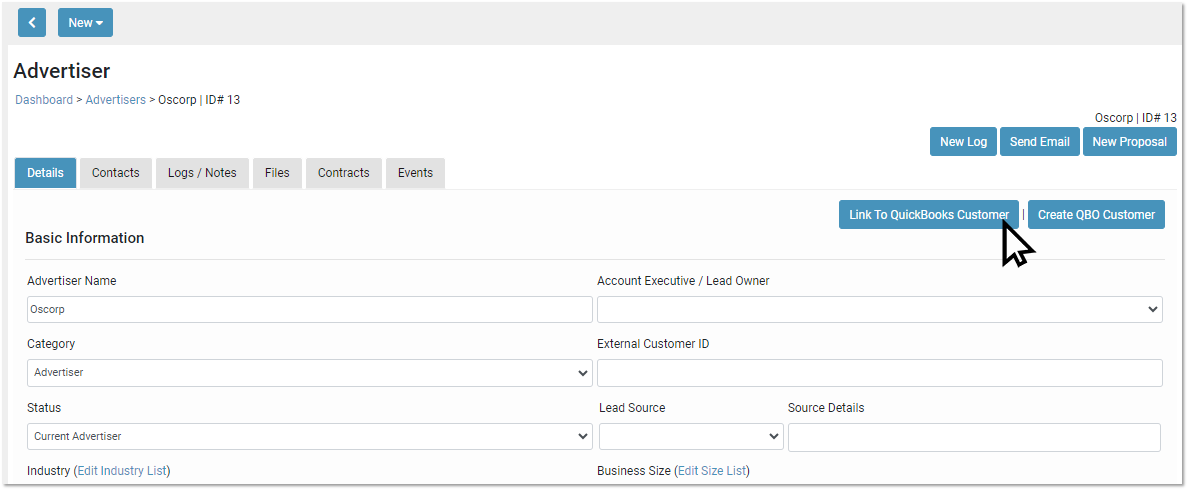
4. After the page refreshes, you can now click on the newly visible “QBO Invoices” tab to view invoices associated with that advertiser.**
5. In the “QBO Invoices” tab, click on “New Invoice” to create an invoice in QuickBooks Online associated with this advertiser / customer.
6. After creating an invoice, verify that QBO assigned an Invoice ID number to each invoice. If you do not see an Invoice ID number, you may need to repeat Step 4 in the “Preparing Your QuickBooks Online Account” section of this guide.
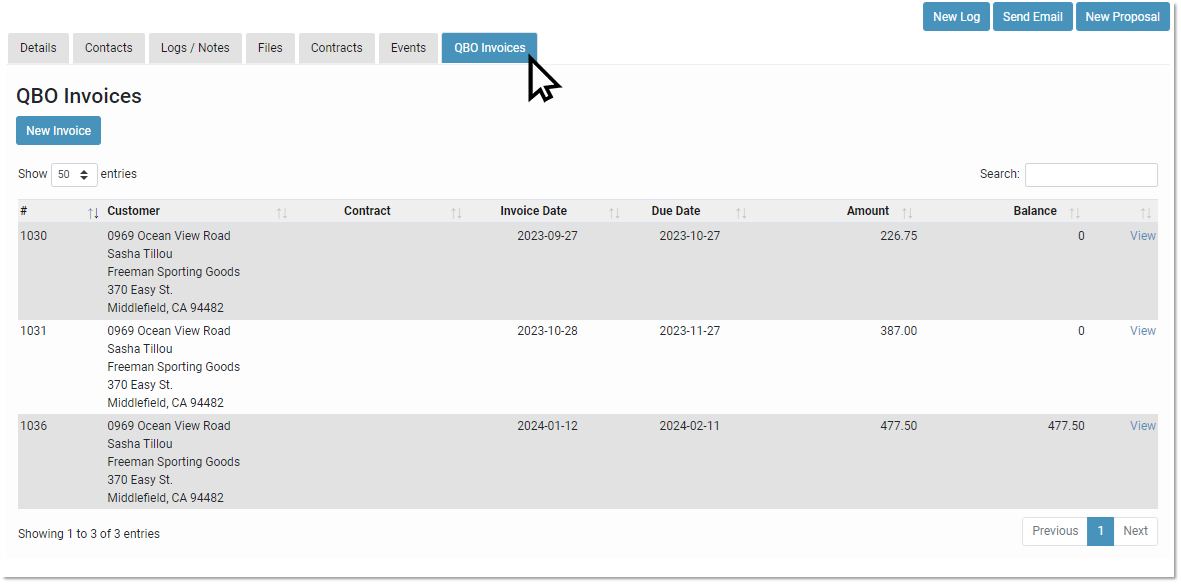
** You can view and add invoices from within SignDash, but you cannot edit QBO invoices from your SignDash account. To edit invoices, please log into your QuickBooks Online account.
Creating Contract Invoices
- In the lefthand menu, navigate to “Contracts” -> “All Active”.
- Find the desired contract and click on the menu icon under the “Action” column, and then click the view icon to view the contract.
- If the advertiser was previously linked to QuickBooks Online, you will see a “QBO Invoices” tab. If the advertiser has not been linked, follow the steps in the “Linking Advertisers to QuickBooks Online” section, or click on either “Link to QuickBooks Customer” or “Create QBO Customer” in the top right corner of the screen.
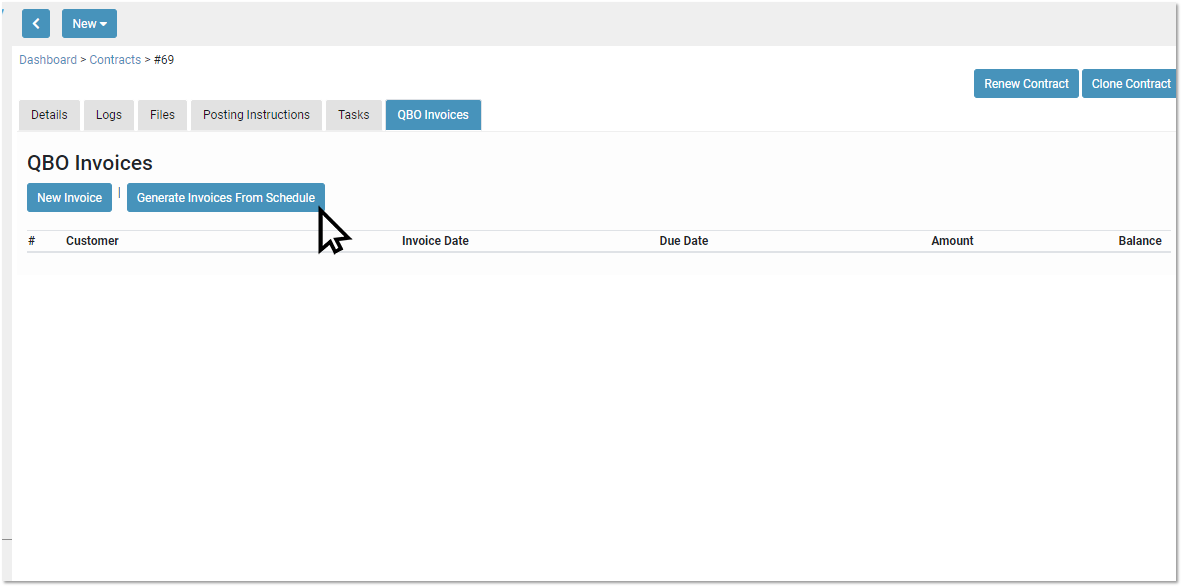
- Once you verify the contract’s advertiser is linked to QuickBooks Online, click on the “QBO Invoices” tab to view invoices associated with the current contract.
- To create a one-time invoice in QuickBooks, click on “New Invoice”. ***
- To create one or more invoices from the SignDash generated invoice schedule, click on “Generate Invoices From Schedule”.****
- After creating an invoice, verify that QBO assigned an Invoice ID number to each invoice. If you do not see an Invoice ID number, you may need to repeat Step 4 in the “Preparing Your QuickBooks Online Account” section of this guide.
*** You may notice that some billboard faces are not linked and cannot be selected in the invoice line items. Please close the create invoice form, navigate to “Quickbooks” -> “Link Faces” to link the required faces.
**** All billboards faces associated with the contract, production fees, and installation fees must be linked before you can use the “Generate Invoices From Schedule” function.
Disconnecting From QuickBooks Online
From Within SignDash
- In the lefthand menu, navigate to “QuickBooks” -> “QuickBooks Connection”
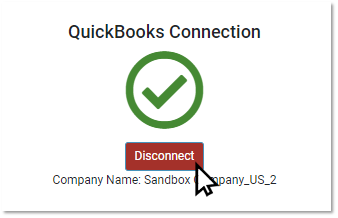
- Click the “Disconnect” button under the QuickBooks Connection checkmark icon.
From Within QuickBooks Online
- Log into your QuickBooks Account
- In the lefthand menu, click on “Apps”.
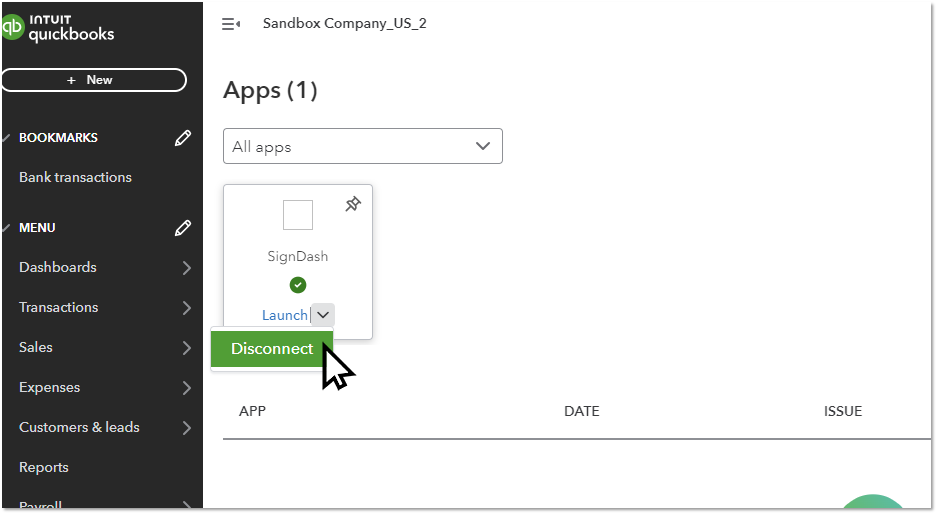
- Locate the SignDash app and click on “Disconnect”.