What are Install Orders?
Install orders are used to schedule and track the progress of vinyl installs. Each install order is associated with a contract and is assigned to an installer. SignDash has a designated user type for installers. Installers can view and manage install orders that have been assigned to them.
Creating a New Install Order
The easiest way to create a new install order is directly from the contract edit screen.
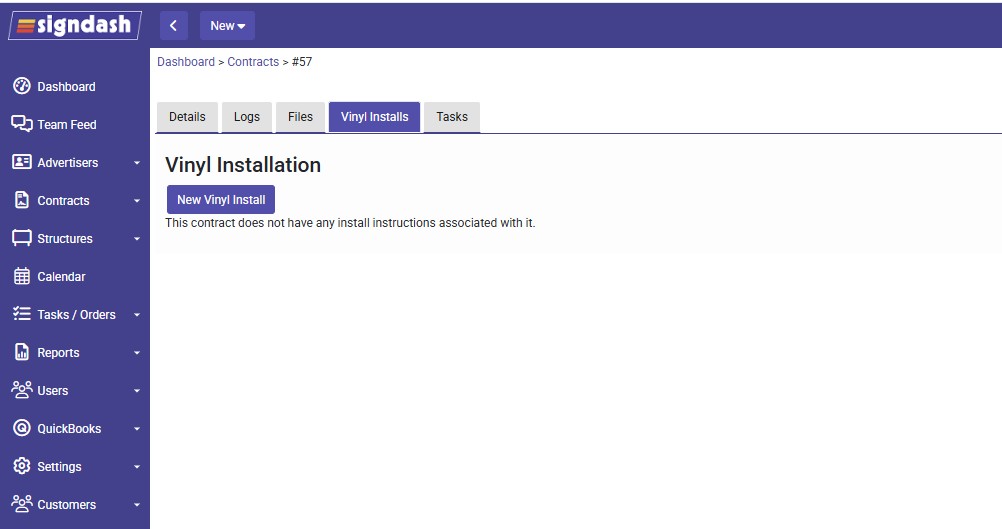
While viewing the contract associated with the new install order:
- Click on the Vinyl Installs tab (this tab only appears on contracts that have static faces)
- Click the “New Vinyl Install” button
- Select one or more faces. If you select multiple faces, a separate install order will be automatically created for each of the faces upon submission.
- Upload the “New Ad” artwork. This will give the installer a visual of what vinyl will be installed.
- Use the “Assigned To” field to assign the install order to a user
- Select the earliest install date (optional)
- Select the install due date
- Click “Save”
You may also create new install orders from various other locations in SignDash, but it will require an additional step of selecting a contract.
Viewing Open Install Orders
You can view install orders at various locations in SignDash, including:
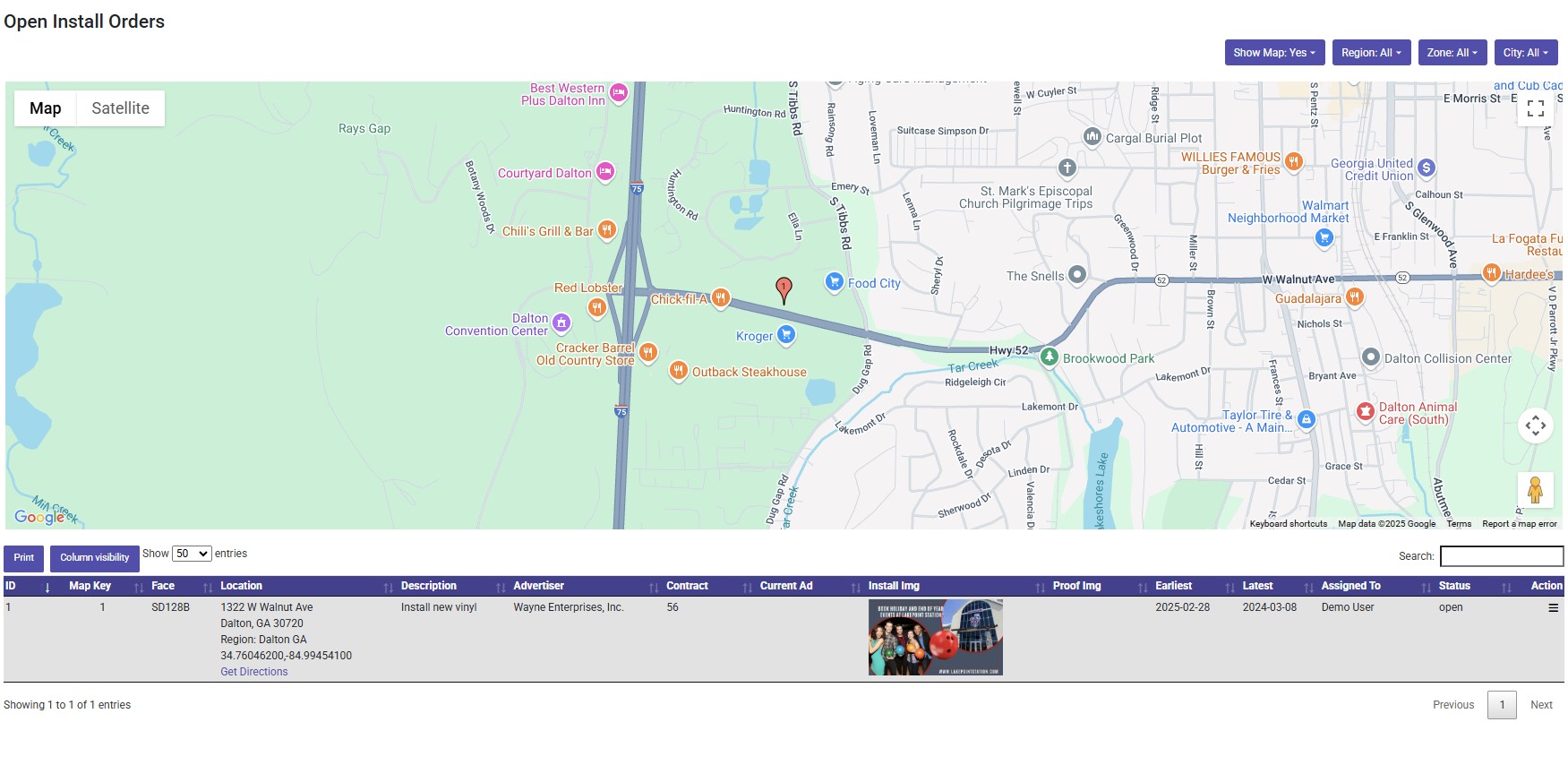
- Main Menu (Tasks / Orders -> Install Orders -> Open Installs)
- This view gives you a list of all open install orders
- Users can use the filters at the top to show/hide the map and filter by region and city.
- The map of all open install orders is interactive
- The list of install orders includes a column labeled “Current Ad” that will show the last known installed ad. This is pulled from previously uploaded “Proof Images”.
- Opening an install order from the list will open its details, allowing you to update status, reassign users, or upload proof images
- The user can also click on the “Get Directions” link to load a google map with directions to the install location.
- Contract Edit Screen (Vinyl Installs tab)
- Advertiser Edit Screen (Vinyl Installs tab)
- “Task” Dashboard
Reassigning Install Orders
When editing an install order, you can reassign the install order by selecting a new user under “Assigned To”. The new user will receive an email notification informing them that it has been assigned to them.
Creating an Installer User Account
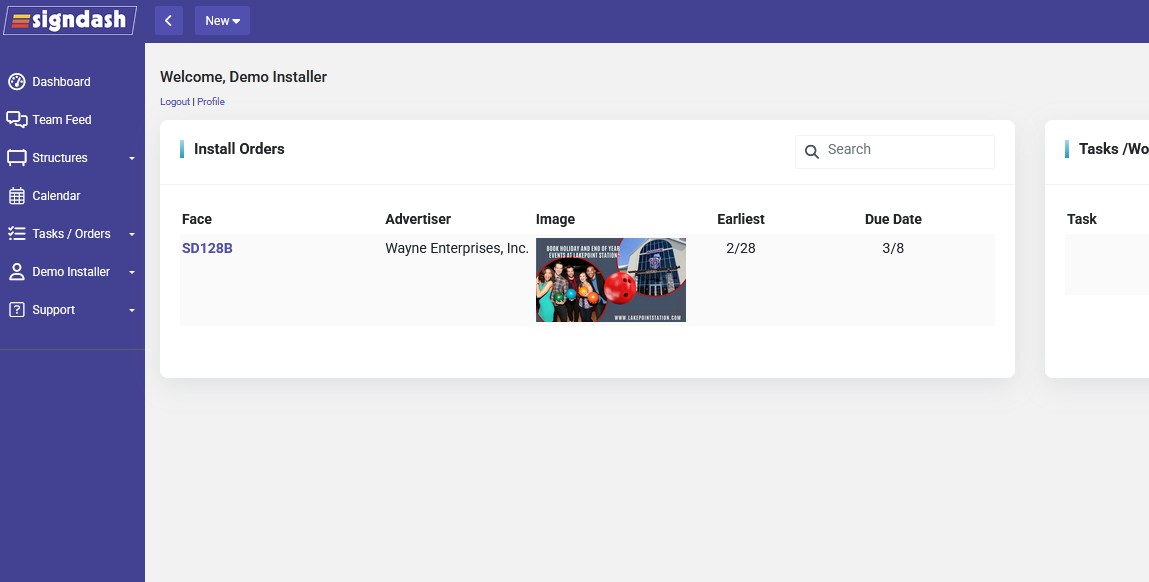
SignDash allows you to create an “Installer” user. Installers can only see their assigned install jobs and tasks. Installers do not have access to company financials or contracts by default.
There are two methods to create a new installer user:
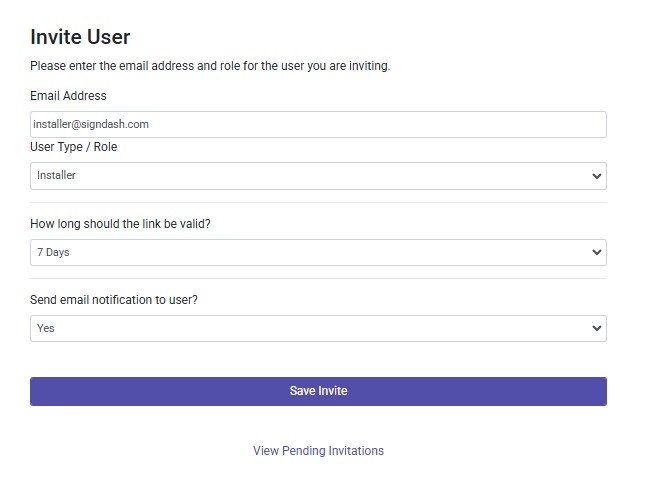
- Method 1: User Invitation (Main Menu: Users -> Send Invite)
- Enter in the user’s email address
- Select “Installer” from the “User Type / Role” dropdown
- Select “Yes” from the “Send email notification to user?” dropdown
- Method 2: Manually Add User (Main Menu: Users -> Manually Add User)
- Fill in all required fields (First Name, Last Name, Email Address, Username, Password
- Select “Installer” from the “User Type / Role” dropdown
- Click “Save User Info”
- The user will not receive an email notification when you manually create their account. You must provide the user with login credentials.
The Installer Dashboard
Users with an installer role can only view the “Tasks” dashboard. This dashboard does not contain any financial or sales performance information.
Installers can only see their assigned install orders and tasks.
Uploading Proof of Play / Closing Install Order
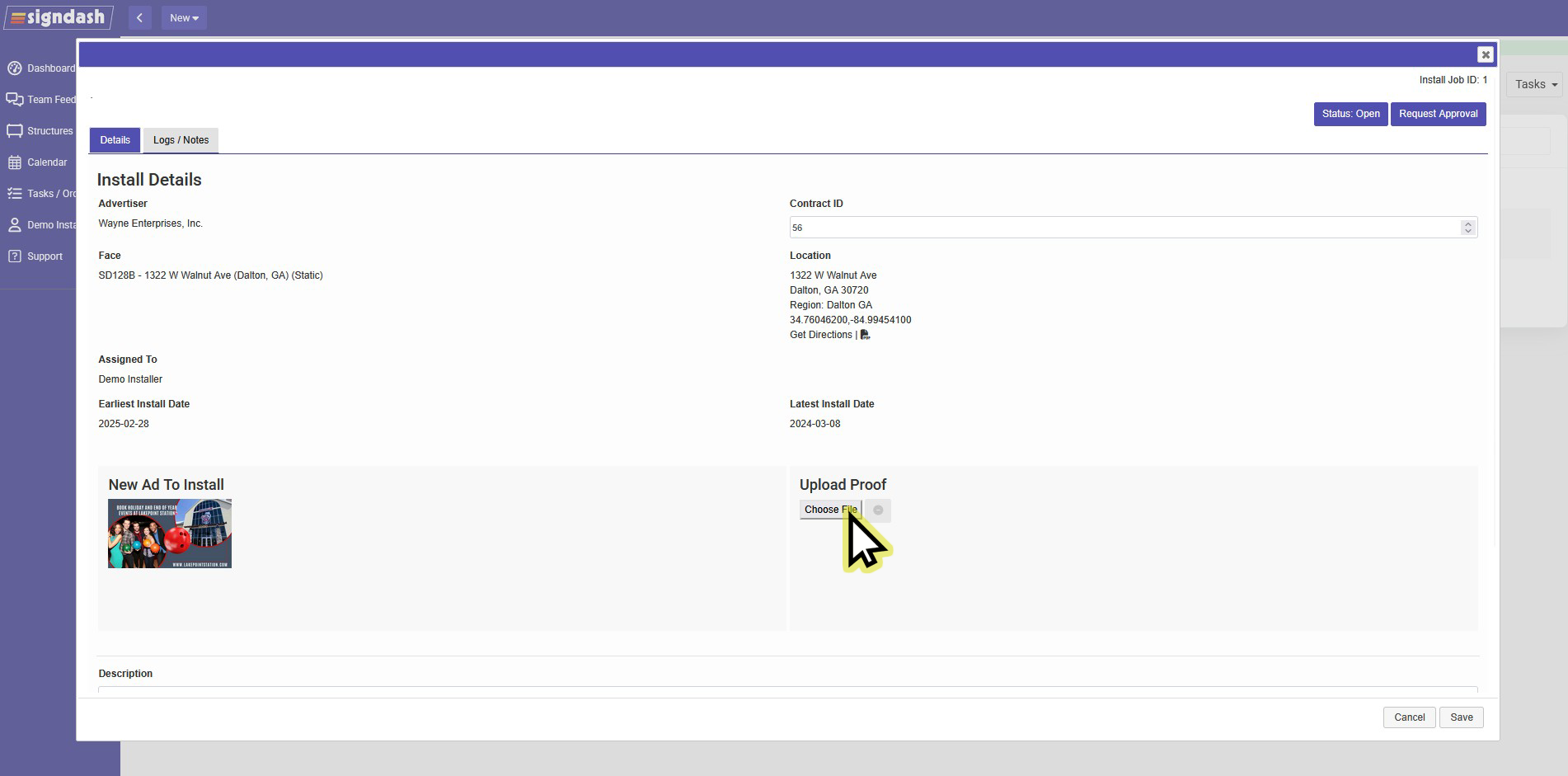
Once an installer completes the physical installation, they can upload the proof of play image and close the install order.
While viewing the install order, the user will:
- Upload a proof of play image. An image can be uploaded from their device or they can use their device’s camera to take a photo
- After a proof image has been uploaded, the installer can request approval of the install order by clicking on the “Request Approval” button.
- After requesting approval, a notification will be sent to the sales rep and email addresses listed in the “Install Approvals” field on the “Settings -> Main Settings -> Email Notifications” page.
- Any administrator can mark the install order as “Completed” to approve and close out the install order.